
Many results in, one outcome out
Every check produces data: how confident the document match is, whether the selfie passed liveness, how closely a name matched a watchlist, whether an email is disposable, whether an IP address is a proxy. Rules read that data and add to a risk score. The score is compared with the thresholds you set to give the outcome.
Because the rules are yours, the decision reflects your appetite for risk, not a vendor's default.
What each outcome means in practice
Low risk. The customer carries on and shows as Approved in the dashboard.
Something is unclear, so you ask for more evidence or another check before deciding.
A person decides. The verification shows as In review and can be opened as a case.
Too risky to proceed. The verification is declined and the reason is kept.
In the dashboard these appear as Approved, In review, Declined and Pending verification statuses.
Build rules in the Rules Engine
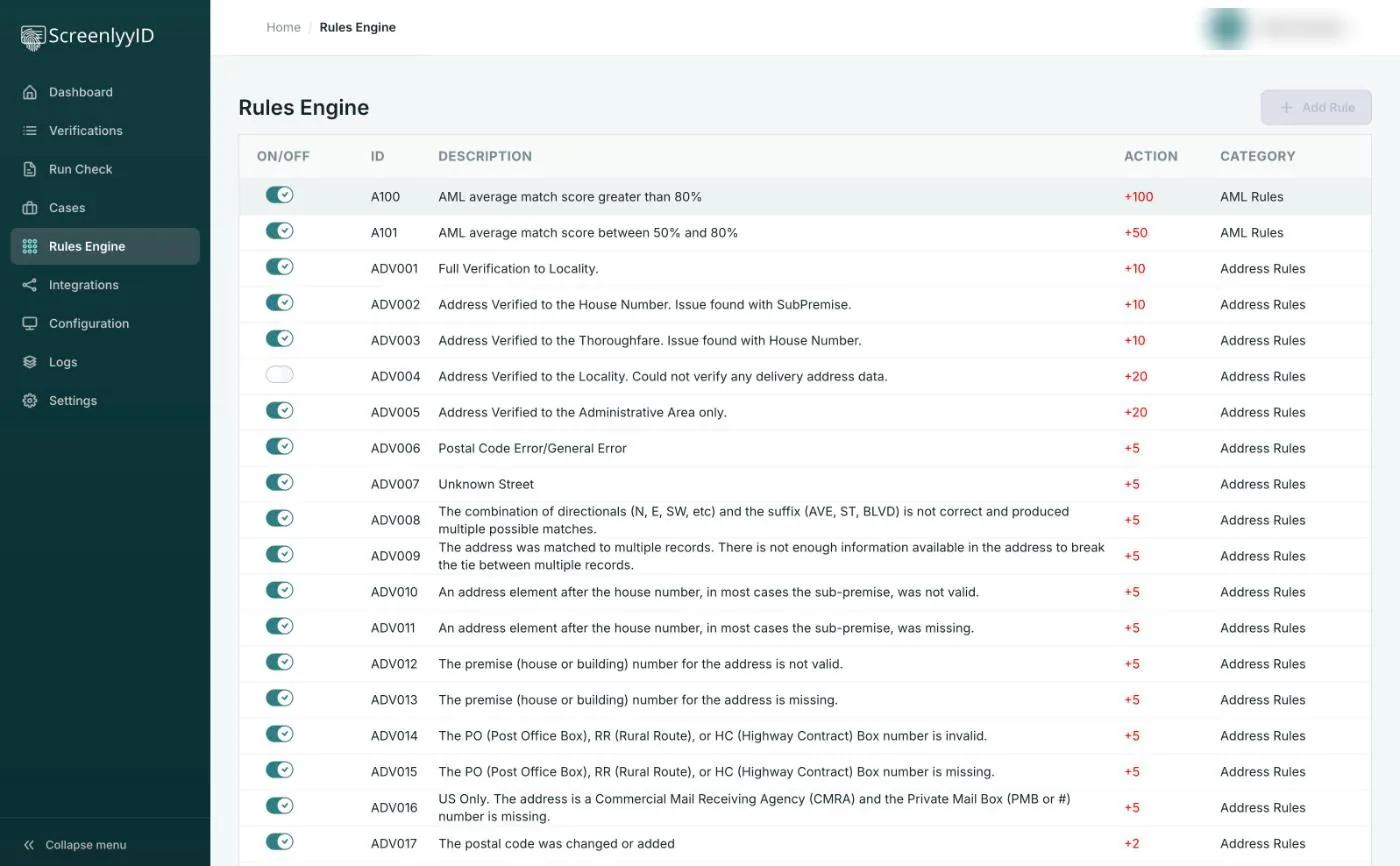
The Rules Engine lists every rule with an on/off switch, an ID, a description, the points it adds and a category such as AML or address rules. A rule is a name, a description, a category, a condition and a score, and you can switch it on or off at any time. Rules can look at:
- Identity checks: overall document confidence, liveness, face match and country.
- AML screening: the average match score against sanctions, PEP and watchlists.
- eIDV: the reliability of data-source matches.
- Address: the verification level reached for the address.
- Email and phone: validity, disposable or free-mail addresses, phone type and carrier status.
- IP and device: proxy, Tor, bot and blocklist signals.
- BIN: prepaid cards and whether the card country matches the IP address.
Pre-set anti-fraud rules are included on every plan, so you can start with sensible defaults and adjust from there.
Thresholds and step-up
Rule points add up to a total score. You set the thresholds that divide low, medium and high risk, and those bands drive the outcome: low risk can be allowed, higher risk can be stepped up for more evidence, sent to review or blocked.
When a customer needs more, you can run additional checks from the dashboard, such as ID and face match, screening or an eIDV data-source check, or send the customer a verification link to supply more evidence. Step-up depends on what your account and plan include, so ask us about your workflow.
Change rules with a record
Rules can be switched on and off without deleting them, and the Rules Engine keeps a history of changes to each rule so you can see what changed. Every evaluation is stored with the score and the result of each rule, so you can explain a decision after the fact. See case review for how flagged customers are handled.
Want the background on the concept? Read our guide to fraud detection.
Frequently asked questions
What is a KYC decision engine?
A KYC decision engine combines the results of several checks, such as ID verification, sanctions screening and device signals, and turns them into one outcome for each customer. ScreenlyyID's rules engine does this with rules you define and thresholds you set.
How does the ScreenlyyID rules engine score a customer?
Each rule has a condition and a score. When a customer's check data meets a rule's condition, its points are added to the total. The total is compared with your low and medium thresholds to give a risk band.
Can I change the rules?
Yes. You can add rules, edit them, and switch them on or off from the Rules Engine in the dashboard. A history of changes to each rule is kept.
What happens when a customer is sent to review?
The verification shows as In review and can be opened as a case, where your team can see the checks that ran, add notes and record the outcome. See case review.
Do I need developers to use it?
No. Rules are managed in the dashboard. Developers are only needed if you want to run checks and read outcomes through the API.
See the rules engine for yourself
Sign up free and explore the Rules Engine, or book a walkthrough.