
What lands in review, and why
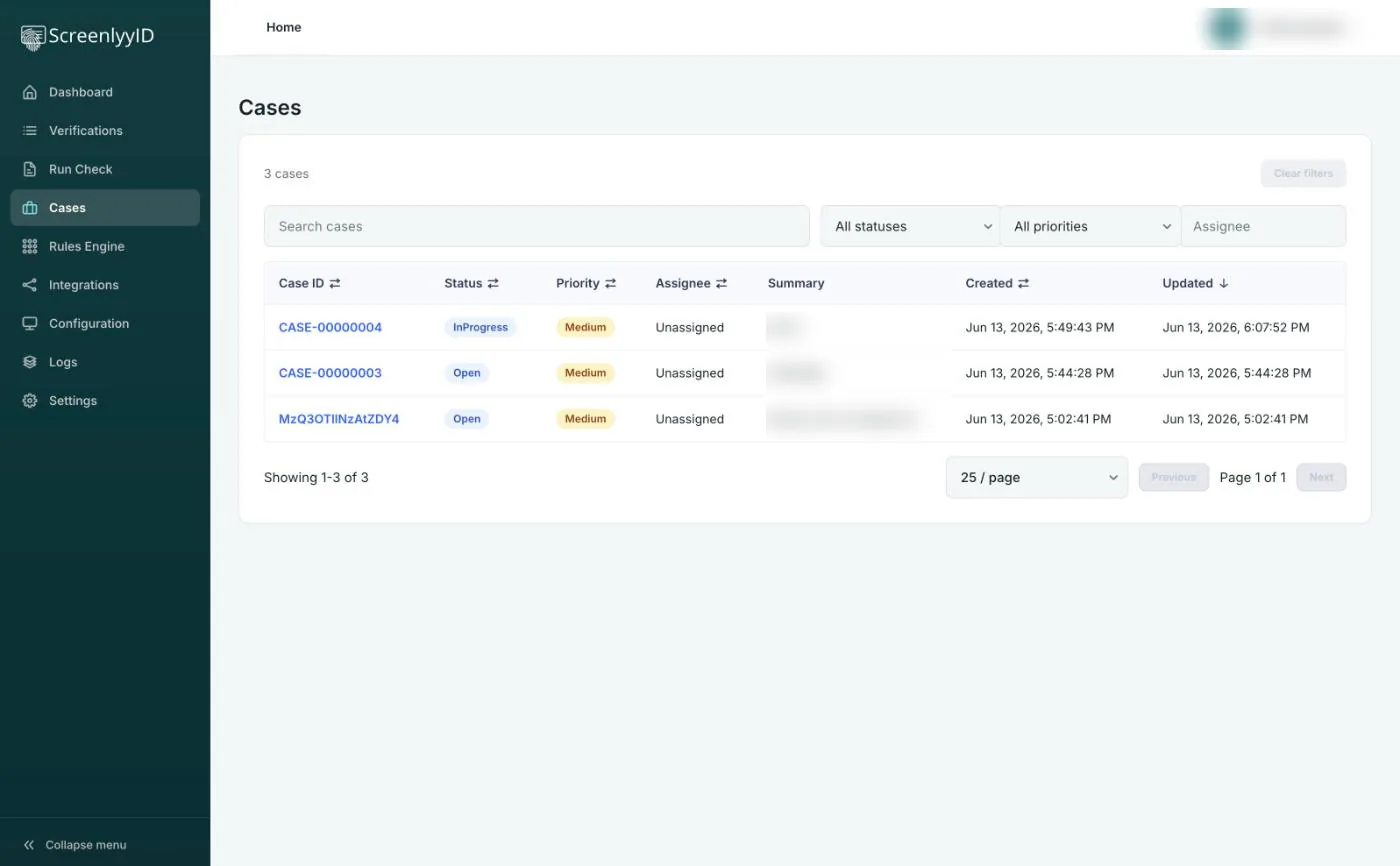
Customers whose results your rules flag show up as In review on the Verifications screen, and you can create a case from any verification. The Cases screen lists every case with its ID, status, priority, assignee and summary, with search and filters so the right person can pick up the right work.
- Statuses: open, in progress, pending, escalated, resolved and closed
- Priority and assignee on every case
- Search and filter by status, priority and assignee
Everything the reviewer needs, in one place
The checks that ran
See which checks were run for the customer and open the results for identity, AML screening and eIDV.
The rules that triggered
See which rules fired and how many points each added, so the reason for the flag is clear.
Notes and history
Add notes as you work and keep a running record of what was decided and by whom.
Actions and who can take them
Reviewers can assign a case, change its status, escalate it and add notes, and can accept or decline check results. Roles keep access sensible: Admins have access to everything, Manual Review users can run checks, view results and accept or decline them but cannot see API keys, billing or users, and Developers can view dashboard charts, logs and API keys and run checks.
Role-based access is included on every plan. See pricing for the number of team members each plan includes.
An audit trail for regulators
Regulators expect you to show what you checked, what you decided and why. In ScreenlyyID the checks, the rules that triggered and the review outcome sit together, and results can be exported to PDF on the Pro and Compliance Pro plans. That supports record-keeping duties such as those in Australia's Tranche 2 reforms: see our Tranche 2 overview for what AUSTRAC expects you to keep.
Looking for the rules that decide who is sent to review? See decisioning.
Frequently asked questions
What is KYC case management?
KYC case management is how a team handles the customers whose checks need a human decision: tracking each one, reviewing the evidence, recording notes and the outcome, and keeping a record for audit. In ScreenlyyID this is the Cases area of the dashboard.
What goes into the review queue?
Verifications your rules flag appear as In review, and you can create a case from any verification. Each case has a status, priority and assignee.
Can I assign and escalate cases?
Yes. Cases can be assigned to a team member, moved through statuses including escalated and resolved, and annotated with notes.
Who can see and work cases?
Access is role-based. Admins can access everything, and Manual Review users can run checks, view results and accept or decline them. Check the role descriptions in your dashboard for the exact permissions.
Does case review help with AML record-keeping?
It gives you a record of the checks, the rules that triggered and the outcome for each case, which supports record-keeping duties. What you must keep, and for how long, depends on your regulator, so confirm the rules that apply to you.
Give your reviewers one place to work
Sign up free and try case review, or ask us for a walkthrough.